Step-by-Step-Guide for My.Delaware.gov
To view your monthly pension payment, you must have an account with My.Delaware.Gov. If you are not transitioning directly from active Delaware employment to retirement, please register using the below Guide. If you are transitioning directly from active Delaware employment into retirement, you may continue using your existing My.Delaware.Gov account.
1. Go to https://my.delaware.gov
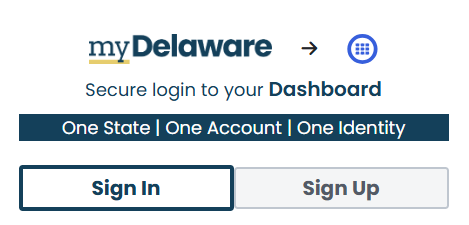
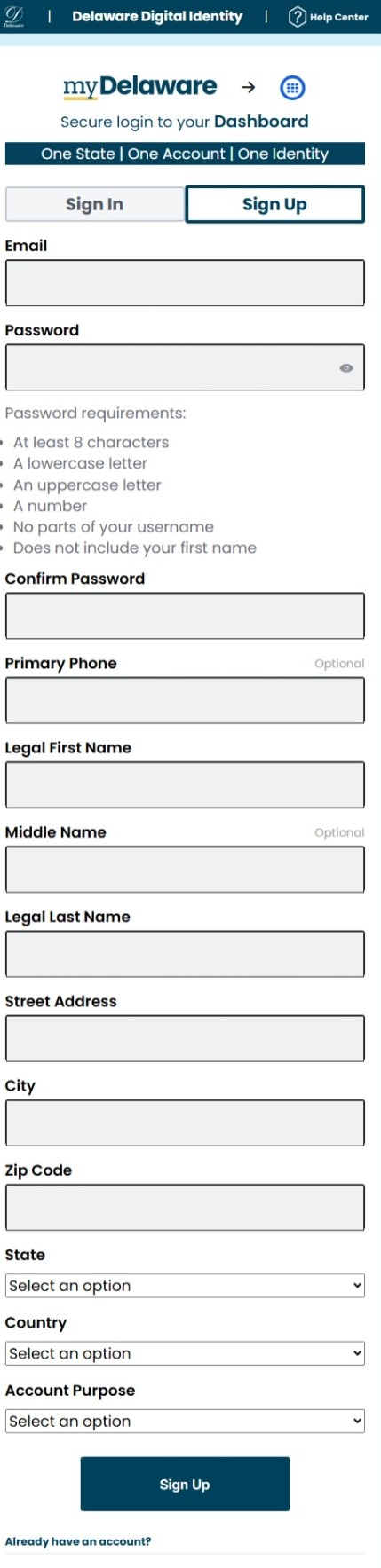
2. Click on Sign Up
3. Complete the registration form filling in the blanks with:
- Email must be a UNIQUE (not shared) personal account. You will need to be able to access this during this registration process.
- Password: see the requirements listed
- Primary Phone: (optional)
- Name: use your legal identity (name as it appears on a government identity document such as Social Security Card)
- Street Address: mailing address
- State: select from the drop-down menu
- Country: select from the drop-down menu
- Account Purpose: typically selected, “For Myself”
4. Click on the Sign Up button at the bottom to continue account set up.
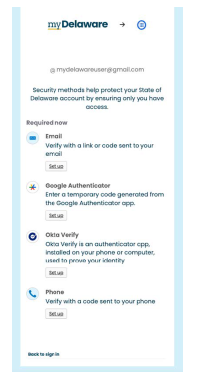
5. Next, you will be presented with the Security Methods screen. You will want to set up at least two security methods, including both email and phone. These are required to reset your password and regain access to your account if it becomes locked.
Email setup.
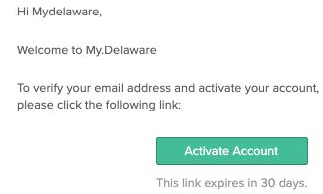
- Click Set up. You are instructed to check your email (see below) for an Account Activation email (see below) from My Delaware.
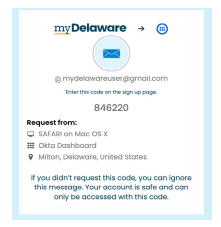
- Click on the green Activate Account button to continue setting up your account. Or you can request a code which will appear in a browser window (see below).
- After you set up email recovery, you see the remaining three security options.
Check your email notice
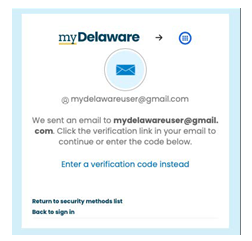
Account Activation Email
Code in browser window
Phone setup.
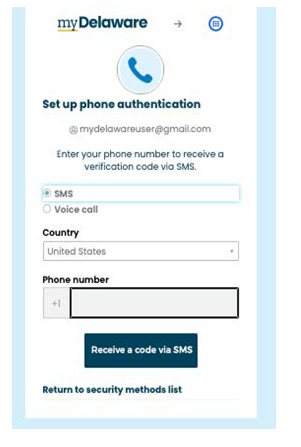
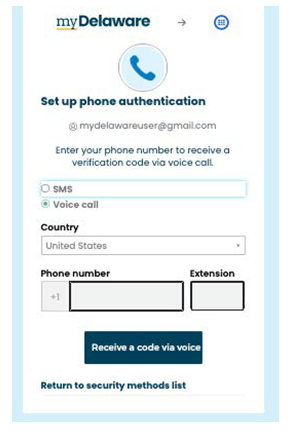
- Click Set Up. Select "SMS" (text message) or "Voice call" (delivers a spoken code by phone call). Once you have entered your phone number you will click on the corresponding button ( "Receive a code via SMS" or "Receive a code via voice") based on the option you selected.
"SMS" requires a phone number that can receive a code via text message.
"Voice call" can deliver a verbal code to any landline phone number.
*If you wish to add a second phone number option, this can be done in Settings once you have completed registering your account.
Okta Verify setup. (You must have a smartphone for this option.)
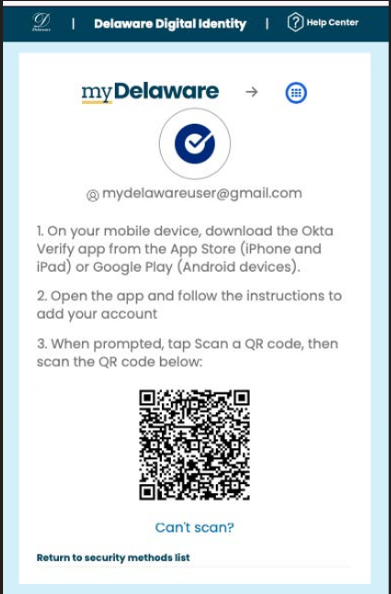
- Click Set Up. Download the Okta Verify app from either Apple App Store or Google Play. You will need to be able to point your camera at the QR code (see below screen) displayed during set up.
Google Play and Apple Store
QR Code – Okta Verify
Google Authenticator setup. (You must have a smartphone for this option.)
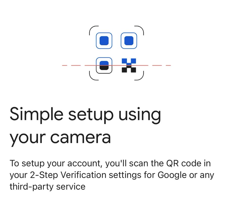
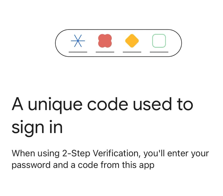
- Click Set Up. Download the Google Authenticator app (see below screens) from either Apple App Store or Google Play. Follow the directions on the app.
Google Authenticator App
6. When you have completed setting up your Security Methods and verified them, the my.Delaware dashboard displays. Your name appears in the upper right corner. If you click on the down arrow it reveals a menu where you can manage your account.
myDelaware Dashboard
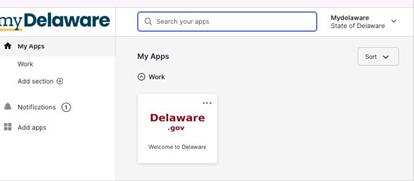
7. You will be able to view your Pension Self-Service tile within 24-48 hours.
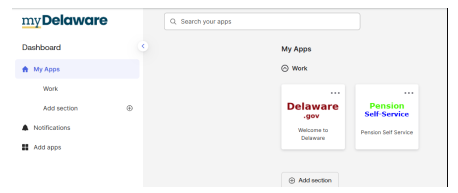
8. When you click the Pension Self-Service tile you can view your Paycheck, Tax documents and/or Retiree Annual Statement.
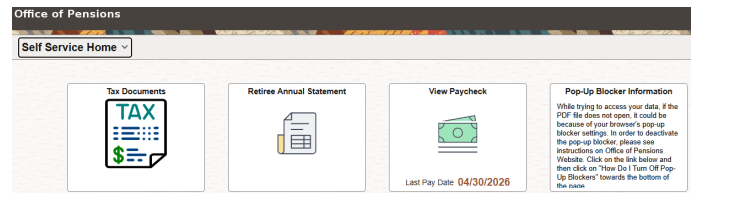
9. If you wish to view your Paychecks, then click on the “View Paycheck” tile.
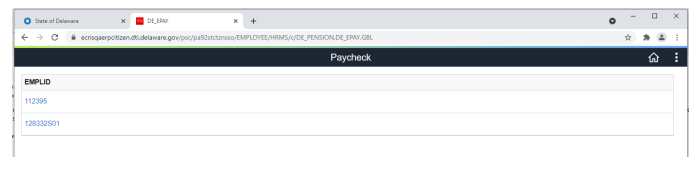
10. If you receive Pension checks from multiple accounts, each account is viewed separately. Select the Employee ID (EMPLID) you wish to view.
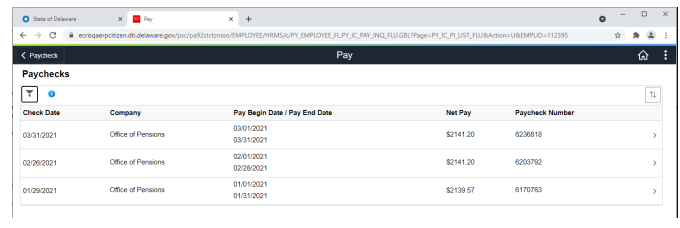
11. Click on the Check Date you wish to view.
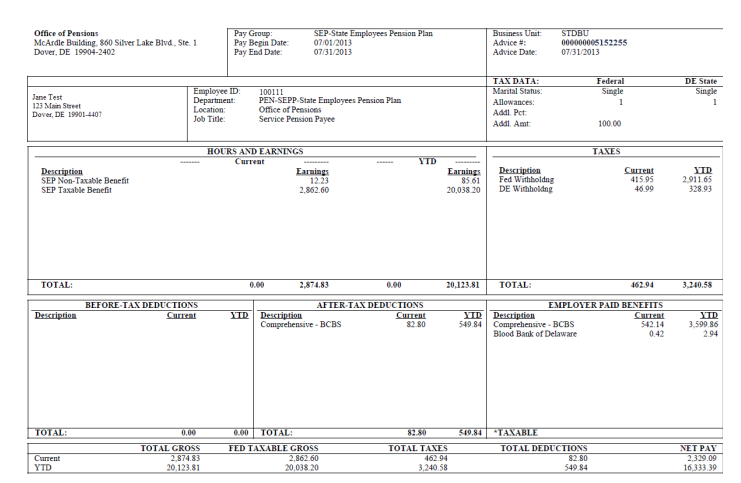
Paycheck View
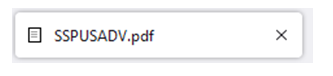
12. When you are done viewing your Paycheck. You can click the “x” next to the .pdf file
13. If you want to go back to the Self-Service Home page, then click on the “Self Service Home”button on the upper left hand side.
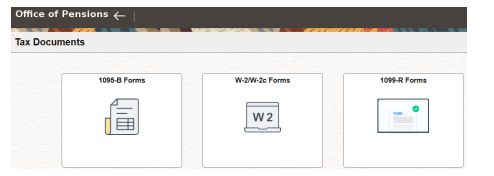
14. If you want to view your Tax Documents, then click on the “Tax Documents” tile.
15. Select the form you wish view.
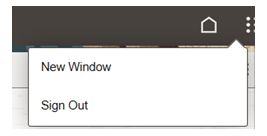
16. When you have completed viewing your Paycheck and tax information, click the three dots in the upper right corner, then click Sign Out. There is also an arrow next to your name in the upper right corner that has a Sign Out option. Sign Out.


 Frequently Asked Questions
 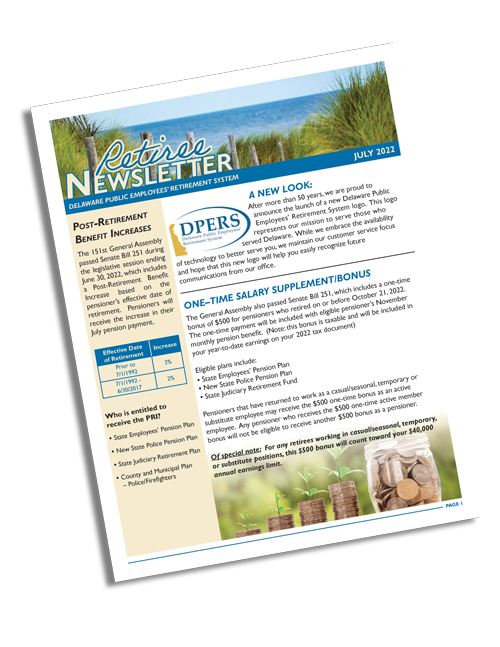 Retiree/Active Member Newsletter
 Retiree Member Login (my.delaware.gov)
  State Employees' Pension Summary Plan Description
 Customer Service Survey
 To access the training online please visit:
The Delaware Safety Council and pay $12.
Discounts will be applied automatically.
This training is for retirees in the State Employees’, Judicial, Old State Police and New State Police Pension Plans.
Contact Delaware Safety Council for Questions at:
(302) 276-0660
 Pension Calculators
Virtual
SEPP Pre-Retirement Workshop
November 18, 2026, from 9 am - 11 am
Learn More About Preretirement Workshops